


Top 7 Prompt Engineering and Text Formatter Tools Freelancers Need

Bad prompts waste billable time. Messy text does the same thing, just quieter.
If you freelance, you’re probably moving between client emails, proposals, blog drafts, AI outputs, CMS fields, Google Docs, Notion pages, Markdown files, PDFs, and random content pasted from somewhere it shouldn’t have been pasted from. A great AI assistant can save you an hour. A bad prompt can burn 20 minutes. A clean formatter can make a draft ready to ship. A sloppy one can wreck spacing, links, headings, and client trust.
This list is a practical follow-up to recent posts on Markdown cleaners and free productivity tools. The focus here is simple: tools that help freelancers write better prompts, clean up text faster, and send polished work without rebuilding everything by hand.
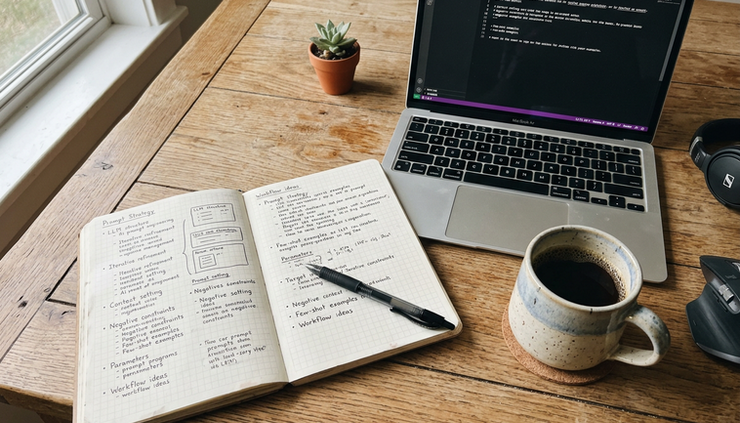
What makes a prompt and text tool worth using
A tool doesn’t need 200 features to earn a spot in your workflow. It needs to save time without adding friction.
For freelancers, the best tools usually do at least one of these jobs well:
Turn rough ideas into clear prompts
Clean AI output so it’s ready to edit
Convert text between formats
Catch awkward writing before a client sees it
Save reusable snippets for repeat work
Protect formatting when moving between apps
The reason this matters is simple. Freelancers don’t just write. They package work. A proposal needs clean headings. A blog draft needs working Markdown. A client update needs the right tone. A prompt for an AI tool needs enough context to get useful output.
That mix is why prompt engineering and text formatting now belong in the same toolkit. The first helps you get better raw material. The second helps you ship it.
Here are the seven tools I’d put on the shortlist.
The 7 tools that cover the most freelance work
1. ChatGPT helps you build strong first drafts and reusable prompts
ChatGPT is still one of the most useful all-purpose tools for freelancers because it’s flexible. You can use it to brainstorm article angles, rewrite a rough bio, create client onboarding questions, summarize notes, or turn a messy brief into a task list.
Where it shines for prompt engineering is iteration. You can ask it to improve your prompt, point out missing context, or create prompt variations for different goals.
A practical freelancer prompt might look like this:
Act as an editor for freelance client work. Review the draft below for clarity, structure, tone, and missing details. Do not rewrite everything. Give me the top five fixes first, then show one improved sample paragraph.
That prompt works because it gives the tool a role, a task, limits, and an output format. Those four pieces matter more than fancy wording.
Best use
Use ChatGPT when you need a thinking partner. It’s good for shaping ideas, creating outlines, testing different tones, and building reusable templates.
Watch out for
It can sound too polished or generic if you don’t give it enough context. Always add the client type, goal, audience, source material, and what “good” looks like.
2. Claude is great for long documents and careful rewriting
Claude, from Anthropic, has become popular with writers, editors, researchers, and consultants because it handles long context well and often gives thoughtful responses. That makes it useful when you need to work with long briefs, transcripts, reports, or rough drafts.
For freelance work, Claude is especially handy when you need to compare versions of a document or ask for a careful edit that keeps the original voice. It tends to be strong at explaining why it made a suggestion, which helps when you’re editing client-facing copy.
Try this kind of prompt:
```text
Review this draft as a careful developmental editor. Keep the writer’s voice. Identify unclear sections, repeated ideas, and claims that need support. Then suggest a cleaner structure.
```
That’s better than asking, “Make this better,” because it defines the kind of editing you want.
Best use
Use Claude for long-form editing, research notes, transcript cleanup, and rewrite requests where tone matters.
Watch out for
Like any AI tool, it can make confident claims that still need checking. If the output includes facts, names, dates, numbers, or source claims, verify them before sending.
3. Google AI Studio is useful for testing prompts before using them
Google AI Studio is less of a writing app and more of a testing space for prompts and model behavior. If you create repeatable AI workflows for client work, this can be useful.
For example, say you often turn raw interview notes into article briefs. You can test instructions, adjust system prompts, compare outputs, and refine the format before copying the final prompt into your normal workflow.
That matters because a prompt that works once isn’t always a good prompt. A good freelancer prompt should work across several similar jobs.
A reusable prompt should define:
The role the AI should take
The source material it should use
The output structure
What to avoid
How uncertain claims should be handled
Best use
Use Google AI Studio when you want to test and improve prompt templates, especially if you use AI often and want more control.
Watch out for
It may feel too technical if you only need quick writing help. If your work is mostly simple drafting and editing, ChatGPT or Claude may feel faster.

4. Grammarly catches everyday writing issues before delivery
Grammarly isn’t a prompt engineering tool, but it earns a place here because freelancers live and die by clean communication. A typo in a client proposal is small. A pattern of messy writing is not.
Grammarly helps with spelling, punctuation, grammar, and tone suggestions. It works across many writing spaces, which makes it useful for emails, docs, forms, and browser-based tools.
The real value is the second pass. AI-generated text often looks fluent while hiding awkward phrasing, repeated words, or mismatched tone. Grammarly can catch some of that before you send a draft.
Best use
Use Grammarly for everyday cleanup. It’s strongest as a final check on emails, proposals, article drafts, and client messages.
Watch out for
Don’t accept every suggestion automatically. Grammar tools can flatten voice. If a sentence sounds like you and it’s clear, keep it.
5. Hemingway Editor makes bloated writing easier to trim
Hemingway Editor has a simple job: it highlights hard-to-read sentences, passive voice, adverbs, and complex phrasing. That makes it useful when your writing feels heavy.
Freelancers often need to turn expert material into readable copy. A client may send a paragraph like this:
```text
The implementation of the revised internal communication process was initiated in order to facilitate improved cross-functional clarity.
```
A cleaner version would be:
```text
The team changed its internal communication process so departments could share updates more clearly.
```
That’s where Hemingway helps. It nudges you toward shorter sentences and direct wording.
Best use
Use Hemingway when you’re editing blog posts, landing pages, explainers, newsletters, and client copy that needs to feel lighter.
Watch out for
Readable doesn’t always mean short. Some topics need nuance. Treat Hemingway as a warning system, not a boss.
6. Markdown tools keep your drafts clean across platforms
Markdown is popular because it’s plain text, portable, and easy to convert. It works well for blog posts, documentation, GitHub files, static sites, notes apps, and AI-generated drafts.
The catch is that Markdown can get messy fast. Paste from Google Docs and you may get weird spacing. Copy from an AI tool and you may get inconsistent headings. Move content into a CMS and lists may break.
That’s where Markdown cleaners, linters, and converters help.
Useful options include:
Markdownlint
Checks Markdown files against common formatting rules.
Prettier
Formats Markdown and other file types in a consistent style.
Pandoc
Converts between formats like Markdown, HTML, DOCX, and PDF.
A dedicated Markdown cleaner
Removes clutter, fixes spacing, and standardizes headings before publishing.
The CommonMark project exists because different tools have historically parsed Markdown in different ways. That’s the practical reason clean formatting matters. A draft can look fine in one app and break in another.
Best use
Use Markdown tools when you publish blog posts, documentation, newsletters, help articles, or any content that needs to move between platforms.
Watch out for
Don’t over-clean content without checking the output. Formatters can change line breaks, code blocks, or nested lists if the original text is inconsistent.

7. TextExpander or Espanso saves your repeat typing
Freelancers repeat themselves more than they realize.
You probably have standard answers for:
Project availability
Discovery call follow-ups
Invoice reminders
Proposal sections
Revision policy notes
Content brief questions
AI prompt starters
Text expansion tools let you type a short shortcut and expand it into a full block of text. TextExpander is one of the best-known paid options. Espanso is an open-source option that runs locally and appeals to people who like more control.
For example, you might type:
```text
;brief
```
And expand it into:
```text
Before I start, could you send the target audience, primary goal, preferred tone, must-include points, examples you like, and anything I should avoid?
```
You can do the same with AI prompts. Save your best prompt frameworks, then reuse them instead of rewriting from scratch.
Best use
Use a text expander for repeat messages, client templates, content checklists, and prompt frameworks.
Watch out for
Keep snippets updated. A stale proposal paragraph or old policy line can create confusion.
The best tool depends on the job you repeat most
Here’s the quick version if you’re trying to choose.
Tool | Best for | Why freelancers like it |
ChatGPT | Drafting, brainstorming, prompt building | Flexible and fast for everyday work |
Claude | Long docs and careful edits | Handles longer context and tone-sensitive rewrites well |
Google AI Studio | Prompt testing | Helps refine repeatable AI workflows |
Grammarly | Final writing checks | Catches grammar, spelling, and tone issues |
Hemingway Editor | Plain-language editing | Makes dense writing easier to trim |
Markdown tools | Formatting and conversion | Keeps drafts clean across apps and CMSs |
TextExpander or Espanso | Snippets and repeat prompts | Saves time on messages and templates |
If your work involves lots of content production, start with ChatGPT or Claude, Grammarly, and a Markdown cleaner. If you handle recurring client communication, add a text expansion tool next. If you build repeatable AI workflows, test prompts in Google AI Studio.
My recommended starter stack
You don’t need all seven on day one. Too many tools can slow you down, especially if they overlap.
A clean starter stack looks like this:
For writers and editors
Use Claude or ChatGPT for drafting and editing, Grammarly for final checks, Hemingway for readability, and a Markdown formatter before publishing.
For consultants and service freelancers
Use ChatGPT for proposals and client emails, TextExpander or Espanso for repeat messages, and Grammarly for cleanup.
For technical writers and no-code builders
Use Google AI Studio for prompt testing, Markdownlint or Prettier for formatting, Pandoc for conversion, and Claude or ChatGPT for draft support.
For content freelancers using AI every day
Build a small prompt library. Save prompts for outlines, summaries, rewrites, fact-check reminders, and formatting cleanup. Then use a text expander to call them up quickly.
That setup gives you speed without turning your workflow into a maze.

A simple workflow that ties them together
Here’s a practical way to use these tools without bouncing around all day.
Start with the source material. Put the client brief, notes, transcript, or rough idea into ChatGPT or Claude. Ask for structure before you ask for polished writing. That keeps the output from getting too glossy too soon.
Next, draft in your normal writing app. Don’t edit every sentence while generating ideas. Get the shape right first.
Then run the piece through Hemingway if it feels dense. Look for long sentences and passive phrasing, but keep your judgment active.
After that, use Grammarly for grammar, spelling, and tone checks. This is your cleanup pass, not your full edit.
If the final format is Markdown, run it through your Markdown cleaner, Markdownlint, Prettier, or Pandoc depending on the job. Check headings, links, lists, and code blocks before delivery.
Last, save anything reusable. If a prompt worked well, add it to TextExpander or Espanso. If a client email got a good response, turn it into a snippet. Your future self will thank you on a busy Tuesday.
The takeaway for freelancers
The best productivity tools don’t make your work feel automated. They make it feel less scattered.
Prompt tools help you ask better questions and get stronger drafts. Text formatter tools help you clean the result and deliver it in the right shape. Together, they cut the boring parts of freelance work: retyping, reformatting, rewriting vague prompts, and fixing broken copy-paste jobs.
Start with one AI assistant, one writing checker, one formatter, and one snippet tool. Use them for a week on real client work. Keep what saves time. Drop what adds clicks.
That’s how you build a tool stack that actually earns its place.


Comments